 Caroline Blanca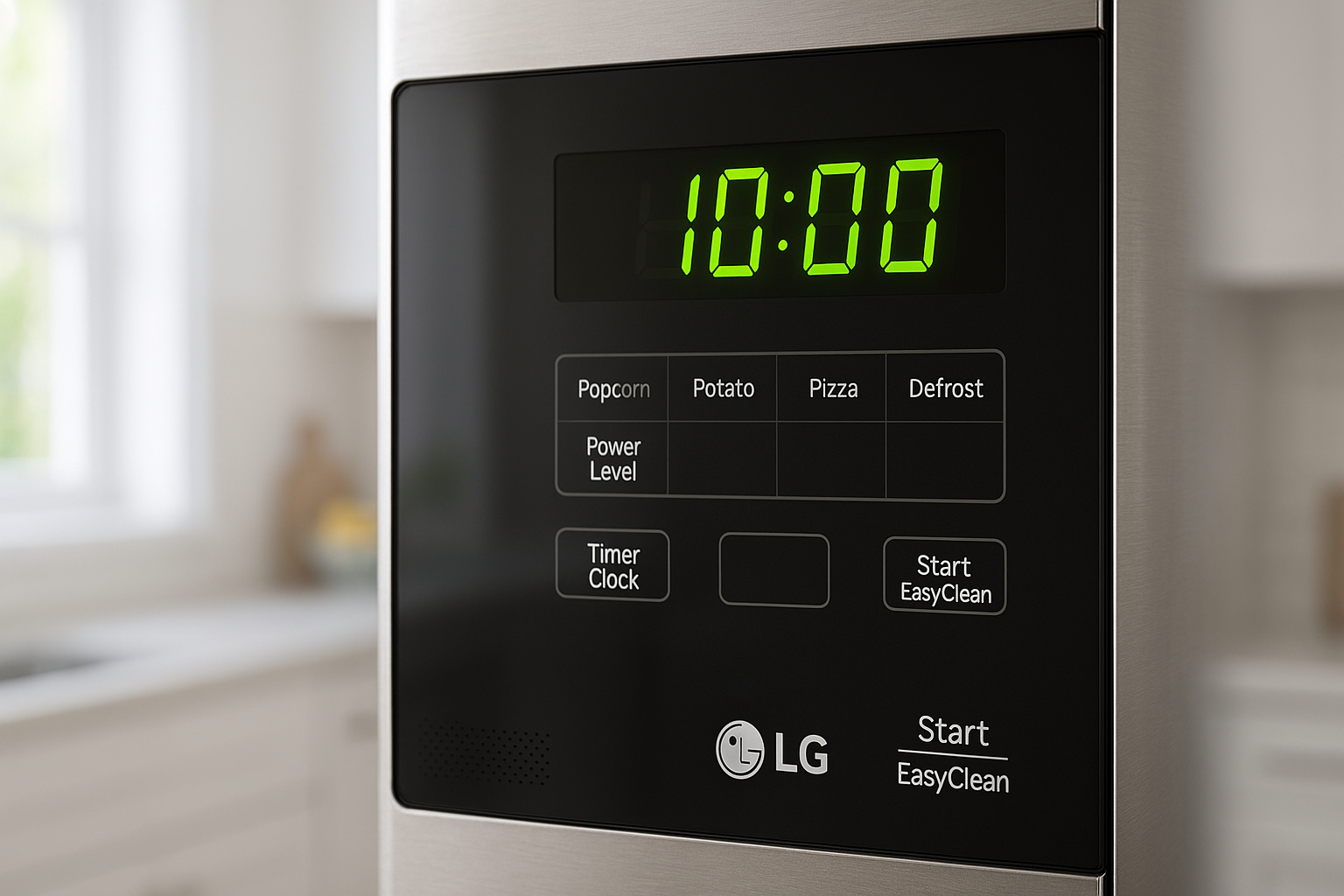
You have just plugged in your LG microwave — or the power went out and came back — and now the clock is flashing 12:00 at you. It is a small thing, but a microwave without the correct time set is genuinely annoying to live with. The good news is that setting the clock on an LG microwave takes less than 60 seconds once you know the right button sequence.
Here is exactly how to do it on every LG microwave model.
Quick Answer
To set the clock on most LG microwaves, press the Clock button, enter the current time using the number pad, then press Clock again to confirm. On models without a dedicated Clock button, press and hold the Kitchen Timer button for 3 seconds to access the clock setting instead. The whole process takes under 60 seconds.
Why Your LG Microwave Clock Keeps Resetting
Before going through the setup steps, it helps to understand why the clock resets in the first place. In most cases it comes down to one of three things — a power outage, the microwave being unplugged, or a soft reset being performed. Unlike smartphones and computers, most LG microwave models do not have a backup battery to retain the clock setting when power is lost. As a result, every time the unit loses power the clock returns to its default flashing state and needs to be set again.
If your clock resets frequently without any power outage, however, it may indicate a loose power connection or a failing internal component. In that case setting the clock is only a temporary fix and the underlying connection issue should be investigated.
Method 1: Using the Clock Button (Most LG Models)
Step 01
Press the Clock button once
Look for a button labelled Clock on your control panel. On most LG microwave models this is a dedicated button located near the top of the keypad. Press it once and the display will begin flashing, indicating it is ready to accept the time input.
Step 02
Enter the current time
Use the number pad to enter the current time. For example, if the time is 7:30, press 7, 3, 0. If the time is 11:45, press 1, 1, 4, 5. Most LG models use a 12-hour format by default, so enter the time accordingly.
Step 03
Select AM or PM
After entering the time, some LG models will prompt you to select AM or PM. Press the Clock button once to toggle between AM and PM, or use the number pad button that corresponds to your choice depending on your specific model. Check the display carefully to confirm the correct period is selected before moving to the next step.
Step 04
Press Clock again to confirm
Press the Clock button one final time to save the time setting. The display should stop flashing and show the time running steadily. If the display continues flashing after pressing Clock, press Start or Enter instead — some LG models use these buttons to confirm the clock setting.

Method 2: Using the Kitchen Timer Button (Select Models)
Some LG microwave models — particularly newer and slimmer designs — do not have a dedicated Clock button on the control panel. On these models, the clock setting is accessed through the Kitchen Timer button instead.
Step 01
Press and hold Kitchen Timer for 3 seconds
Press and hold the Kitchen Timer button for approximately 3 seconds until the display begins flashing. This activates the hidden clock setting mode on models that do not have a dedicated Clock button. Notably, a short single press will activate the kitchen timer function — you need the long press specifically to access the clock.
Step 02
Enter the time and confirm
Use the number pad to enter the current time exactly as described in Method 1 above. Once entered, press Kitchen Timer again to confirm and save the setting. The display will stop flashing and the clock will begin running from the time you entered.
💡 Tip: Not sure which method applies to your model? Check the sticker on the inside of the microwave door frame — it shows the model number. You can then search that model number on lg.com to download the exact manual for your unit and find the precise clock-setting instructions.
Method 3: Setting the Clock on LG Smart Inverter Models
LG Smart Inverter microwaves follow a slightly different process. Furthermore, some models in this range allow you to switch between 12-hour and 24-hour clock formats — a useful option that standard models do not offer.
Smart Inverter Method
Full clock setup including format selection
- Press the Clock button once — the display will flash
- Press Clock again to toggle between 12-hour and 24-hour format
- Once your preferred format is selected, enter the current time using the number pad
- Press Clock a final time to confirm and save
On 24-hour format, enter time as a 4-digit number — for example 14:30 would be entered as 1, 4, 3, 0. On 12-hour format, enter the time and then select AM or PM when prompted.
Quick Reference by Model Type
| LG Model Type | Clock Button? | Method to Use | Confirm With |
|---|---|---|---|
| Standard countertop models | Yes | Method 1 | Clock button |
| Slim and compact models | No | Method 2 | Kitchen Timer button |
| LG Smart Inverter models | Yes | Method 3 | Clock button |
| Over-the-range models | Yes | Method 1 | Start or Enter button |
What to Do If the Clock Won’t Set
In most cases the clock sets without any issue. However, if you have followed the steps above and the clock still won’t save, try these fixes in order:
The display is not responding to button presses
Check whether the child lock is active. If the display shows an “L” or a padlock icon, the child lock is blocking all button input. Press and hold STOP/CLEAR for 3 to 5 seconds to deactivate it, then try setting the clock again.
The clock resets every time you press Start
This usually means the confirmation step was missed. Make sure you press the Clock button a second time after entering the time — simply entering the numbers without confirming will not save the setting.
The clock resets after every use
If the clock saves correctly but resets every time you finish cooking, the microwave has an internal memory fault. Furthermore, this is often caused by a failing capacitor or control board issue. Contact LG support at lg.com/support for a diagnosis.
⚠️ Important: If your LG microwave clock resets multiple times per day without any power outage, do not ignore it. Frequent unexplained resets can indicate an internal electrical fault that may affect the microwave’s performance and safety over time. Have it checked by a technician.
How to Turn the Clock Display Off
Some LG microwave owners prefer not to have the clock displayed at all — particularly if the microwave is in a bedroom or a space where the light is distracting at night. Interestingly, many LG models allow you to turn the clock display off without affecting any other functions.
How to do it on most LG models:
- Press the Clock button and hold it for 3 to 5 seconds
- The display should go blank or show dashes instead of the time
- To turn the display back on, press and hold Clock again for 3 to 5 seconds
Note that this feature is not available on all LG models. If holding the Clock button does not turn off the display on your unit, check your model’s manual for the specific steps.
The Bottom Line
Setting the clock on an LG microwave is a straightforward process that takes under 60 seconds on any model. The method varies slightly depending on whether your model has a dedicated Clock button or uses the Kitchen Timer button instead — but both approaches follow the same basic pattern of activating, entering, and confirming.
If your clock keeps resetting on its own without any power interruption, that is the sign of a deeper issue worth investigating rather than a normal behaviour to work around. In most other cases, the steps above will have your clock set correctly and running steadily within a minute.
For more LG microwave tips and guides, browse our full how-to library at lgmicrowaves.com.
Was this guide helpful?
Browse our full library of LG microwave how-to guides and buying advice at Legit Gadgets.